Cobra Wings AI Feature
Lift your upper body while lying on your stomach.
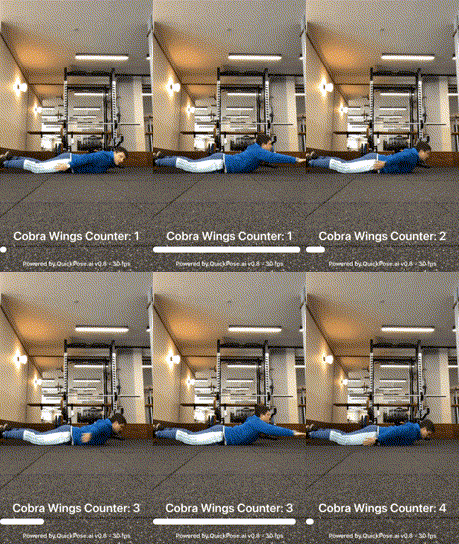
Feature
- Swift
- Kotlin
- React Native
  feature = .fitness(.cobraWings)
  feature = .fitness(.cobraWings, style: customOrConditionalStyle)
  feature = Feature.Fitness(FitnessFeature.CobraWings)
  feature = Feature.Fitness(FitnessFeature.CobraWings, style = customOrConditionalStyle)
  feature = 'fitness.cobraWings'
  featureStyles = { 'fitness.cobraWings': { conditionalColors: [{ min: 0.8, max: null, color: '#00FF00' }] } }
Basic Implementation
- Swift
- Kotlin xml
- Kotlin Compose
- React Native
To show results you'll need to modify your view ZStack, which is we assume is setup as described in the Getting Started Guide:
ZStack(alignment: .top) {
    QuickPoseCameraView(useFrontCamera: true, delegate: quickPose)
    QuickPoseOverlayView(overlayImage: $overlayImage)
}
The basic implementation will require displaying some text to the screen, start with declaring this value in your swiftui view.
@State private var feedbackText: String? = nil
And show this feedback text as an overlay to the view in your branding.
ZStack(alignment: .top) {
    QuickPoseCameraView(useFrontCamera: true, delegate: quickPose)
    QuickPoseOverlayView(overlayImage: $overlayImage)
}
.overlay(alignment: .center) {
    if let feedbackText = feedbackText {
        Text(feedbackText)
            .font(.system(size: 26, weight: .semibold)).foregroundColor(.white).multilineTextAlignment(.center)
            .padding(16)
            .background(RoundedRectangle(cornerRadius: 8).foregroundColor(Color("AccentColor").opacity(0.8)))
            .padding(.bottom, 40)
    }
}
Note the above use of alignment in .overlay(alignment: .center), you can modify this to move the overlay around easily to say the bottom: .overlay(alignment: .bottom).
To show results you'll need to modify your camera and overlay view, which is we assume is setup as described in the Getting Started Guide:
override fun onCreate(savedInstanceState: Bundle?) {
        cameraAndOverlay = findViewById(R.id.quickpose_camera_and_overlay_view)
        cameraSwitchView = QuickPoseCameraSwitchView(this, quickPose)
        cameraAndOverlay?.addView(cameraSwitchView)
The basic implementation will require displaying some text to the screen, start with declaring this value in your view xml
  <TextView
        android:id="@+id/feedback_text_view"
        android:visibility="gone"
        android:layout_width="wrap_content"
        android:layout_height="wrap_content"
        android:gravity="center"
        android:padding="12dp"
        android:textColor="#FFFFFF"
        android:textSize="24sp"
        android:background="@drawable/spinner_background"
        android:text="Feedback"
        app:layout_constraintTop_toTopOf="parent"
        app:layout_constraintBottom_toBottomOf="parent"
        app:layout_constraintStart_toStartOf="parent"
        app:layout_constraintEnd_toEndOf="parent" />
private var feedbackTextView: TextView? = null
And show this feedback text as an overlay to the view in your branding.
override fun onCreate(savedInstanceState: Bundle?) {
        cameraAndOverlay = findViewById(R.id.quickpose_camera_and_overlay_view)
        cameraSwitchView = QuickPoseCameraSwitchView(this, quickPose)
        cameraAndOverlay?.addView(cameraSwitchView)
        feedbackTextView = findViewById<TextView>(R.id.feedback_text_view)
To show results you'll need to modify your Box, which we assume is setup as described in the Getting Started Guide:
Box(modifier = Modifier.fillMaxSize()) {
    AndroidView(
        factory = { ctx -> QuickPoseCameraSwitchView(ctx, quickPose) },
        onRelease = { view ->
            view.stop()
            quickPose.stop()
        },
        modifier = Modifier.fillMaxSize()
    )
}
The basic implementation will require displaying some text to the screen, start with declaring this value in your composable.
var feedbackText by remember { mutableStateOf<String?>(null) }
And show this feedback text as an overlay to the view in your branding.
Box(modifier = Modifier.fillMaxSize()) {
    AndroidView(
        factory = { ctx -> QuickPoseCameraSwitchView(ctx, quickPose) },
        onRelease = { view ->
            view.stop()
            quickPose.stop()
        },
        modifier = Modifier.fillMaxSize()
    )
    feedbackText?.let { text ->
        Text(
            text = text,
            color = Color.White,
            fontSize = 26.sp,
            fontWeight = FontWeight.SemiBold,
            textAlign = TextAlign.Center,
            modifier = Modifier
                .align(Alignment.Center)
                .background(
                    color = Color(0xCC5970F6),
                    shape = RoundedCornerShape(8.dp)
                )
                .padding(16.dp)
        )
    }
}
Note the above use of Alignment.Center in Modifier.align(...) — you can change this to move the overlay easily, for example Alignment.BottomCenter.
To show results you'll need to modify your QuickPoseView, which we assume is setup as described in the Getting Started Guide:
<QuickPoseView
  sdkKey="YOUR_SDK_KEY"
  features={['overlay.wholeBody']}
  useFrontCamera={true}
  style={{ flex: 1 }}
/>
The basic implementation will require displaying some text to the screen, start with declaring this value in your component.
const [feedbackText, setFeedbackText] = useState<string | null>(null);
And show this feedback text as an overlay to the view in your branding.
<View style={{ flex: 1 }}>
  <QuickPoseView
    sdkKey="YOUR_SDK_KEY"
    features={['overlay.wholeBody']}
    useFrontCamera={true}
    style={{ flex: 1 }}
  />
  {feedbackText && (
    <View style={{
      position: 'absolute', alignSelf: 'center', top: '50%',
      backgroundColor: 'rgba(89,112,246,0.85)', padding: 16, borderRadius: 8,
    }}>
      <Text style={{ color: 'white', fontSize: 24 }}>{feedbackText}</Text>
    </View>
  )}
</View>
For this basic version it fills the feedback text with the Cobra Wing result as a percentage, and hides the text when the feature result is not available.
- Swift
- Kotlin
- React Native
quickPose.start(features: [.fitness(.cobraWings)], onFrame: { status, image, features, feedback, landmarks in
    switch status {
        case .success:
            overlayImage = image
            if let result = features.values.first  {
                feedbackText = "Cobra Wings: \(Int(result.value * 100))%"
            } else {
                feedbackText = nil
            }
        case .noPersonFound:
            feedbackText = "Stand in view";
        case .sdkValidationError:
            feedbackText = "Be back soon";
    }
})
quickPose.start(
    arrayOf(.fitness(.cobraWings)),
    onFrame = { status, overlay, features, feedback, landmarks ->
        runOnUiThread {
            feedbackTextView?.apply {
                when (status) {
                    is Status.Success -> {
                        if (features.values.isNotEmpty()) {
                            val result = features.values.first()
                            text = "Cobra Wings: ${(result.value * 100).toInt()}%"
                            visibility = View.VISIBLE
                        } else {
                            text = ""
                            visibility = View.GONE
                        }
                    }
                    Status.NoPersonFound -> {
                        text = "Stand in view"
                        visibility = View.VISIBLE
                    }
                    Status.SdkValidationError -> {
                        text = "Be back soon"
                        visibility = View.VISIBLE
                    }
                }
            }
        }
    }
)
<QuickPoseView
  sdkKey="YOUR_SDK_KEY"
  features={['fitness.cobraWings']}
  useFrontCamera={true}
  style={{ flex: 1 }}
  onUpdate={(event) => {
    const { results } = event.nativeEvent;
    if (results.length > 0) {
      setFeedbackText("Cobra Wings: " + Math.round(results[0].value * 100) + "%");
    } else {
      setFeedbackText(null);
    }
  }}
/>
Form Feedback
We recommend using the feature feedback to guide the user if an error occurs
- Swift
- Kotlin
- React Native
quickPose.start(features: [.fitness(.cobraWings)], onFrame: { status, image, features, feedback, landmarks in
    switch status {
        case .success:
            overlayImage = image
            if let result = features.values.first  {
                feedbackText = "Cobra Wings: \(Int(result.value * 100))%"
            } else if let feedback = feedback.values.first, feedback.isRequired  {
                feedbackText = feedback.displayString
            } else {
                feedbackText = nil
            }
        case .noPersonFound:
            feedbackText = "Stand in view";
        case .sdkValidationError:
            feedbackText = "Be back soon";
    }
})
quickPose.start(
    arrayOf(.fitness(.cobraWings)),
        onFrame = { status, overlay, features, feedback, landmarks ->
            runOnUiThread {
                feedbackTextView?.apply {
                    when (status) {
                        is Status.Success -> {
                            if (features.values.isNotEmpty()) {
                                val result = features.values.first()
                                text = "Cobra Wings: ${(result.value * 100).toInt()}%"
                                visibility = View.VISIBLE
                            } else if (feedback.isNotEmpty() && feedback.values.first().isRequired) {
                                val feedbackResult = feedback.values.first()
                                text = feedbackResult.displayString
                                visibility = View.VISIBLE
                            } else {
                                text = ""
                                visibility = View.GONE
                            }
                        }
                        Status.NoPersonFound -> {
                            text = "Stand in view"
                            visibility = View.VISIBLE
                        }
                        Status.SdkValidationError -> {
                            text = "Be back soon"
                            visibility = View.VISIBLE
                        }
                    }
                }
            }
        }
)
<QuickPoseView
  sdkKey="YOUR_SDK_KEY"
  features={['fitness.cobraWings']}
  useFrontCamera={true}
  style={{ flex: 1 }}
  onUpdate={(event) => {
    const { results, feedback } = event.nativeEvent;
    if (results.length > 0) {
      setFeedbackText("Cobra Wings: " + Math.round(results[0].value * 100) + "%");
    } else if (feedback) {
      setFeedbackText(feedback);
    } else {
      setFeedbackText(null);
    }
  }}
/>
Body position: "Get on your front, side on"
.body(feedback: floorSideOnWithBackOffTheGround, isRequired: true)
Joint Visibility:
"Move left arm into view" "Move right arm into view" "Move upper body into view"
"Move left leg into view" "Move right leg into view" "Move lower body into view"
"Move whole body into view"
.group(action: .move, group:.arm(side: .left), direction:.intoView, isRequired: true)
.group(action: .move, group:.arm(side: .right), direction:.intoView, isRequired: true)
.group(action: .move, group:.upperBody, direction:.intoView, isRequired: true)
.group(action: .move, group:.leg(side: .left), direction:.intoView, isRequired: true)
.group(action: .move, group:.leg(side: .right), direction:.intoView, isRequired: true)
.group(action: .move, group:.lowerBody, direction:.intoView, isRequired: true)
.group(action: .move, group:.wholeBody, direction:.intoView, isRequired: true)
Conditional Styling
To give user feedback consider using conditional styling so that when the user's measurement goes above a threshold, here 0.8, a green highlight is shown.
- Swift
- Kotlin
- React Native
let greenHighlightStyle = QuickPose.Style(conditionalColors: [QuickPose.Style.ConditionalColor(min: 0.8, max: nil, color: UIColor.green)])
quickPose.start(features: [.fitness(.cobraWings, style: customOrConditionalStyle)],
                onFrame: { status, image, features, feedback, landmarks in  ...
})
  val greenHighlightStyle = Style(conditionalColors = listOf(Style.ConditionalColor(min = 0.8f, max = null, color = Color.valueOf(Color.GREEN))))
  quickPose.start(arrayOf(Feature.Fitness(FitnessFeature.CobraWings, style = customOrConditionalStyle)),
      onFrame = { status, overlay, features, feedback, landmarks -> ...
  })
  <QuickPoseView
    sdkKey="YOUR_SDK_KEY"
    features={['fitness.cobraWings']}
    featureStyles={{
      'fitness.cobraWings': {
        conditionalColors: [
          { min: 0.8, max: null, color: '#00FF00' },
        ],
      },
    }}
    useFrontCamera={true}
    style={{ flex: 1 }}
    onUpdate={(event) => { ... }}
  />
Cobra Wing Counting
To count the Cobra Wings declare a configurable threshold counter, which can be used to turn lots of our features into counts.
- Swift
- Kotlin
- React Native
@State private var counter = QuickPoseThresholdCounter()
private var counter: QuickPoseThresholdCounter = QuickPoseThresholdCounter()
  const [counter, setCounter] = useState(0);
  const wasAboveThreshold = useRef(false);
Then pass QuickPose's Cobra Wing result to the counter, and display in the feedback text declared above.
- Swift
- Kotlin
- React Native
quickPose.start(features: [.fitness(.cobraWings)], onFrame: { status, image, features, feedback, landmarks in
    switch status {
        case .success:
            overlayImage = image
            if let result = features.values.first  {
                let counterState = counter.count(result.value)
                feedbackText = "\(counterState.count) Cobra Wings"
            } else {
                feedbackText = nil
            }

        case .noPersonFound:
            feedbackText = "Stand in view";
        case .sdkValidationError:
            feedbackText = "Be back soon";
    }
})
quickPose.start(
    arrayOf(.fitness(.cobraWings)),
        onFrame = { status, overlay, features, feedback, landmarks ->
            runOnUiThread {
                feedbackTextView?.apply {
                    when (status) {
                        is Status.Success -> {
                            if (features.values.isNotEmpty()) {
                                val result = features.values.first()
                                val counterState = counter.count(result.value)
                                text = "${counterState.count} Cobra Wings"
                                visibility = View.VISIBLE
                            } else {
                                text = ""
                                visibility = View.GONE
                            }
                        }
                        Status.NoPersonFound -> {
                            text = "Stand in view"
                            visibility = View.VISIBLE
                        }
                        Status.SdkValidationError -> {
                            text = "Be back soon"
                            visibility = View.VISIBLE
                        }
                    }
                }
            }
        }
)
import { QuickPoseView, QuickPoseThresholdCounter } from '@quickpose/react-native';

const counter = useRef(new QuickPoseThresholdCounter());
const [feedbackText, setFeedbackText] = useState('Stand in view');

<QuickPoseView
  sdkKey="YOUR_SDK_KEY"
  features={['fitness.cobraWings']}
  useFrontCamera={true}
  style={{ flex: 1 }}
  onUpdate={(event) => {
    const { results, feedback } = event.nativeEvent;
    if (feedback) {
      setFeedbackText(feedback);
      return;
    }
    if (results.length > 0) {
      const state = counter.current.count(results[0].value);
      setFeedbackText(`${state.count} Cobra Wings`);
    }
  }}
/>
Cobra Wing Timing
To time the Cobra Wings declare a configurable threshold timer, which can be used to turn lots of our features into timers. For Cobra Wings, we suggest modifying the default threshold, taking account of expected camera positioning and tilt.
- Swift
- Kotlin
- React Native
@State private var timer = QuickPoseThresholdTimer(threshold: 0.2)
private var timer: QuickPoseThresholdTimer = QuickPoseThresholdTimer()
  const [elapsed, setElapsed] = useState(0);
  const timerStart = useRef(null);
Then pass the result's raw value to the timer, and display in the feedback text declared above.
- Swift
- Kotlin
- React Native
quickPose.start(features: [.fitness(.cobraWings)], onFrame: { status, image, features, feedback, landmarks in
    switch status {
        case .success:
            overlayImage = image
            if let result = features.values.first  {
                let timerState = timer.time(result.value)
                feedbackText = String(format: "%.1f", timerState.time) + "secs"
            } else {
                feedbackText = nil
            }

        case .noPersonFound:
            feedbackText = "Stand in view";
        case .sdkValidationError:
            feedbackText = "Be back soon";
    }
})
quickPose.start(
    arrayOf(.fitness(.cobraWings)),
        onFrame = { status, overlay, features, feedback, landmarks ->
            runOnUiThread {
                feedbackTextView?.apply {
                    when (status) {
                        is Status.Success -> {
                            if (features.values.isNotEmpty()) {
                                val result = features.values.first()
                                val timerState = timer.time(result.value)
                                text = String.format("%.2f secs", timerState.time)
                                visibility = View.VISIBLE
                            } else {
                                text = ""
                                visibility = View.GONE
                            }
                        }
                        Status.NoPersonFound -> {
                            text = "Stand in view"
                            visibility = View.VISIBLE
                        }
                        Status.SdkValidationError -> {
                            text = "Be back soon"
                            visibility = View.VISIBLE
                        }
                    }
                }
            }
        }
)
// Declare timer state
const [elapsed, setElapsed] = useState(0);
const timerStart = useRef(null);

<QuickPoseView
  sdkKey="YOUR_SDK_KEY"
  features={['fitness.cobraWings']}
  useFrontCamera={true}
  style={{ flex: 1 }}
  onUpdate={(event) => {
    const { results } = event.nativeEvent;
    if (results.length > 0) {
      if (!timerStart.current) timerStart.current = Date.now();
      const secs = (Date.now() - timerStart.current) / 1000;
      setFeedbackText(secs.toFixed(1) + " secs");
    } else {
      timerStart.current = null;
      setFeedbackText(null);
    }
  }}
/>